The improvements we make to LFW.com, from clearer page layouts to new ways of getting things
done. This is the same ongoing attention we bring to the websites we manage.
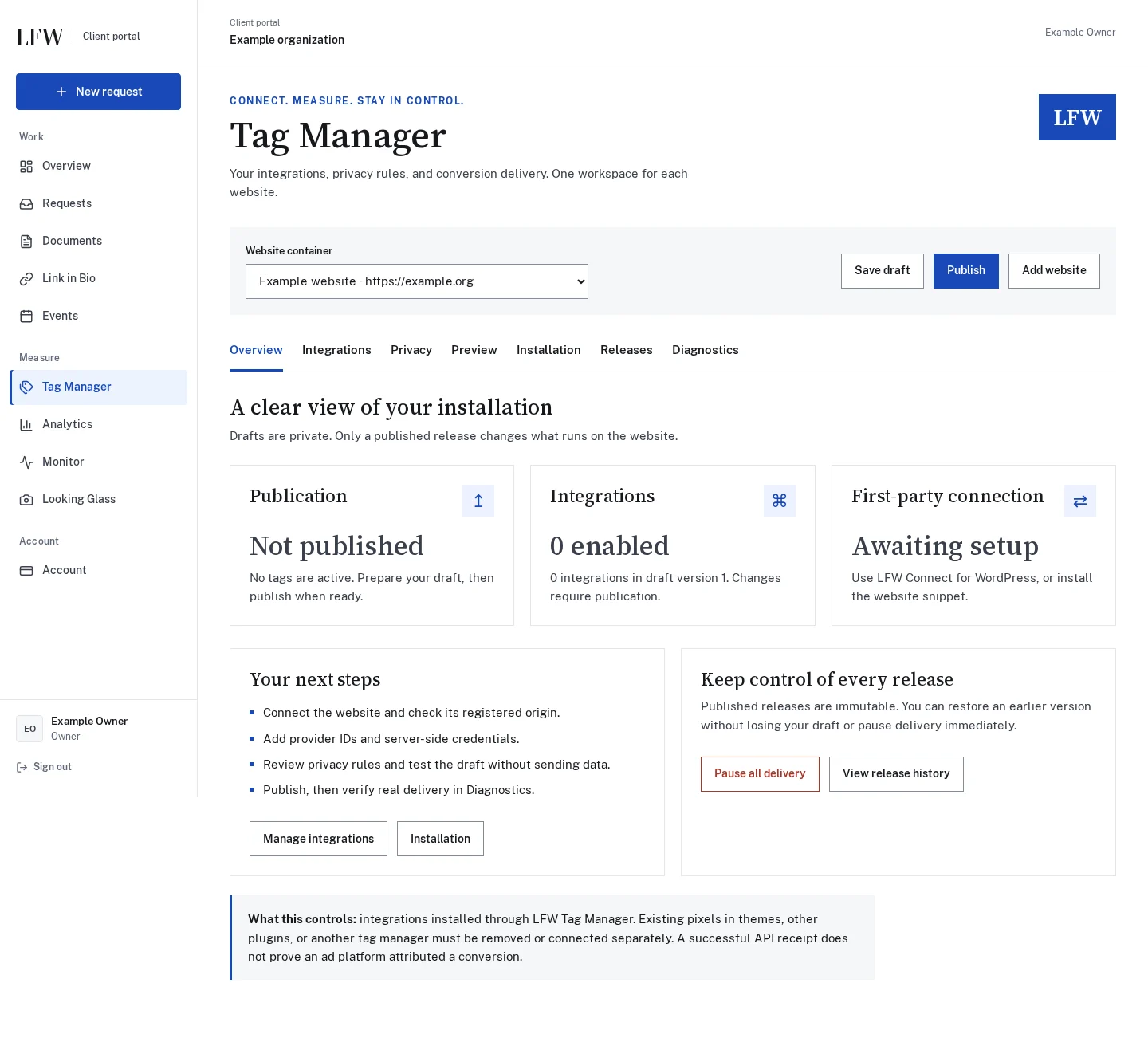
LFW Tag Manager adds a workspace for integration settings, separate visitor privacy choices, previews, and published versions. Review a change before it goes live, restore an earlier configuration, and inspect delivery diagnostics in the same place.
Meta, LinkedIn, and Google Ads have dedicated settings. Each destination still needs account setup, conversion definitions, and a successful receiving-platform test before activation.
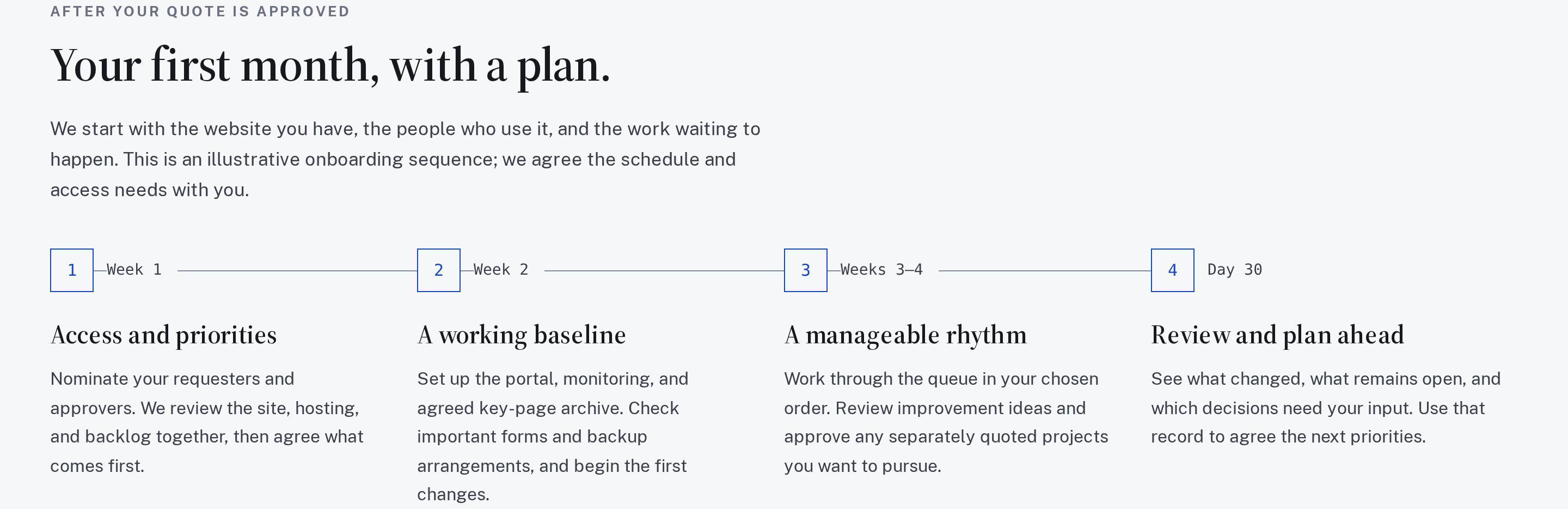
Our Web Operations Retainer page now walks through the first month, shows examples of the work, and explains what we ask when preparing a quote. Capabilities are grouped so you can explore the ones that matter to your team.
The Continuous Improvement Plan explains how we can review a site and suggest next steps when you don’t have time to make the list. The sample service report shows how completed work and open decisions can be presented.
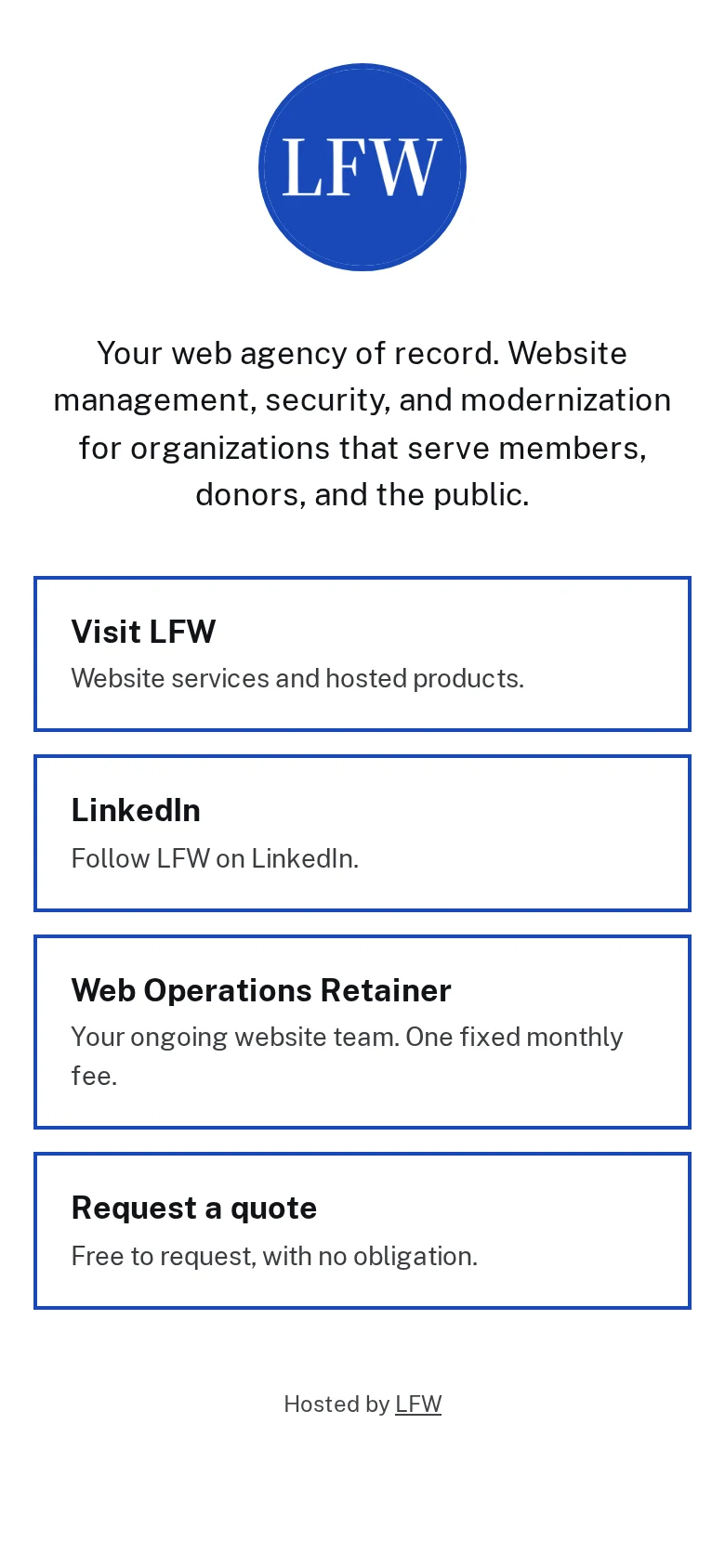
LFW Link in Bio brings your important links onto a hosted page with your logo, colors, background image, and self-hosted fonts. The portal editor includes contrast checks, link ordering, a QR code, and page-view and link-click analytics.
Our own page shows the public result first. Eligible nonprofit organizations can request a standard managed page at no charge; the product page explains the offer and eligibility.
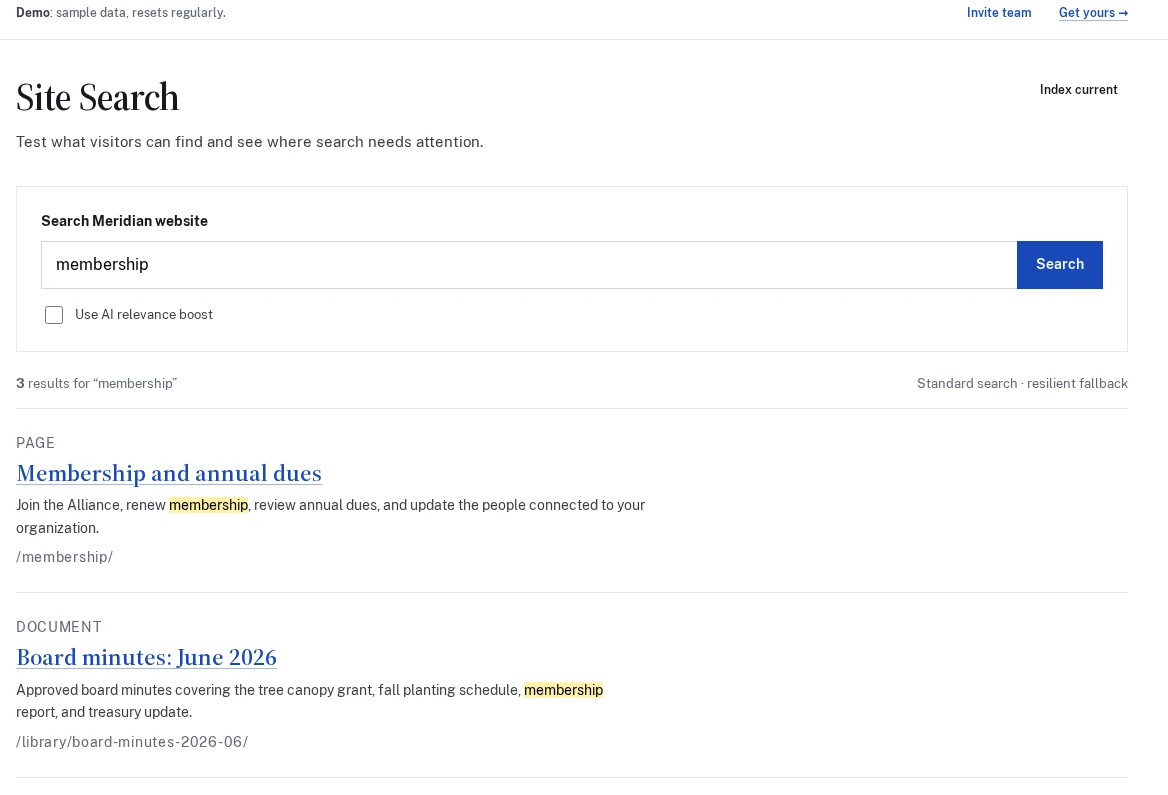
LFW Search adds a hosted service and a portal for testing results. It supports typo-tolerant search, custom content types, and passages that change with the query, with matching words highlighted.
The connector discovers public content types and taxonomies on sites running WordPress. Standard search needs no AI tokens; an optional relevance boost has a fixed allowance and falls back to ordinary results when it cannot run.
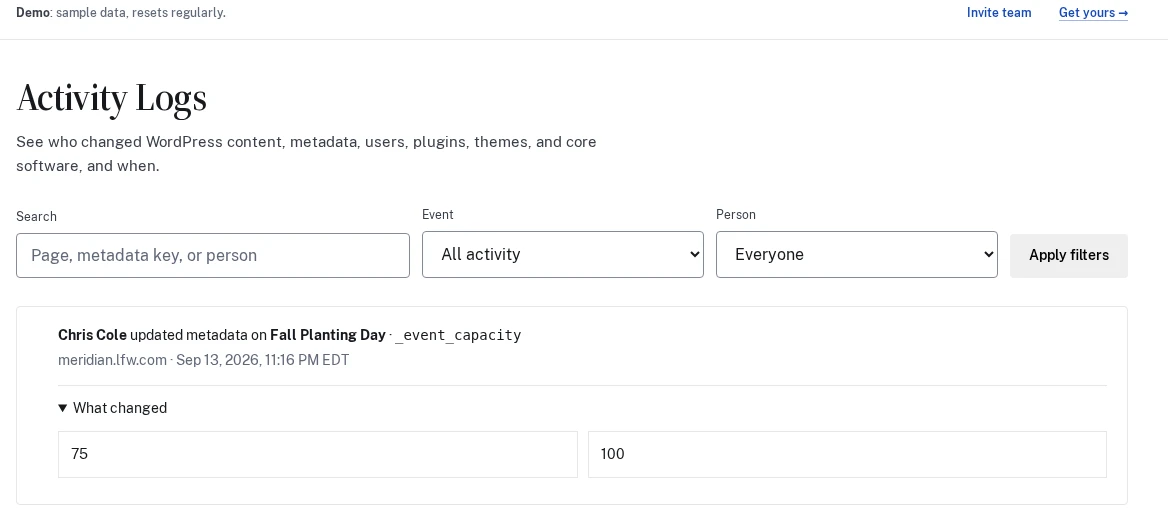
See who changed the content and the fields behind it.
LFW Activity Logs adds a searchable history of changes on sites running WordPress. Look up a page, user, or metadata field, then open an event to compare the previous and new values.
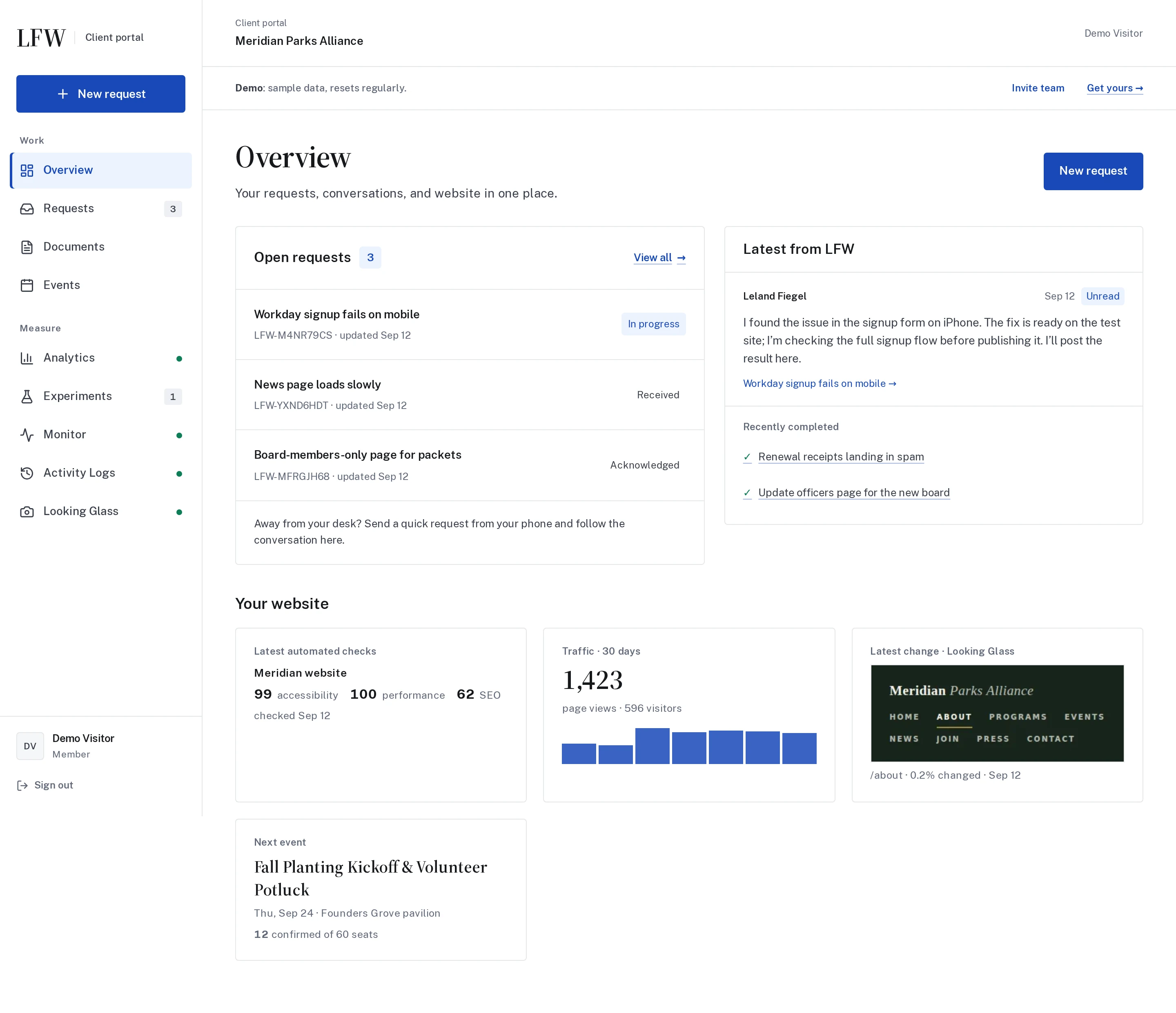
A connector sends the activity to the hosted Client Portal, where it can be reviewed alongside website requests. The product page shows a real connector running on a demonstration installation.
The Client Portal now uses a consistent navigation layout across requests, analytics, experiments, and connected services. Refreshed product screenshots show the interface you can explore in the tour.
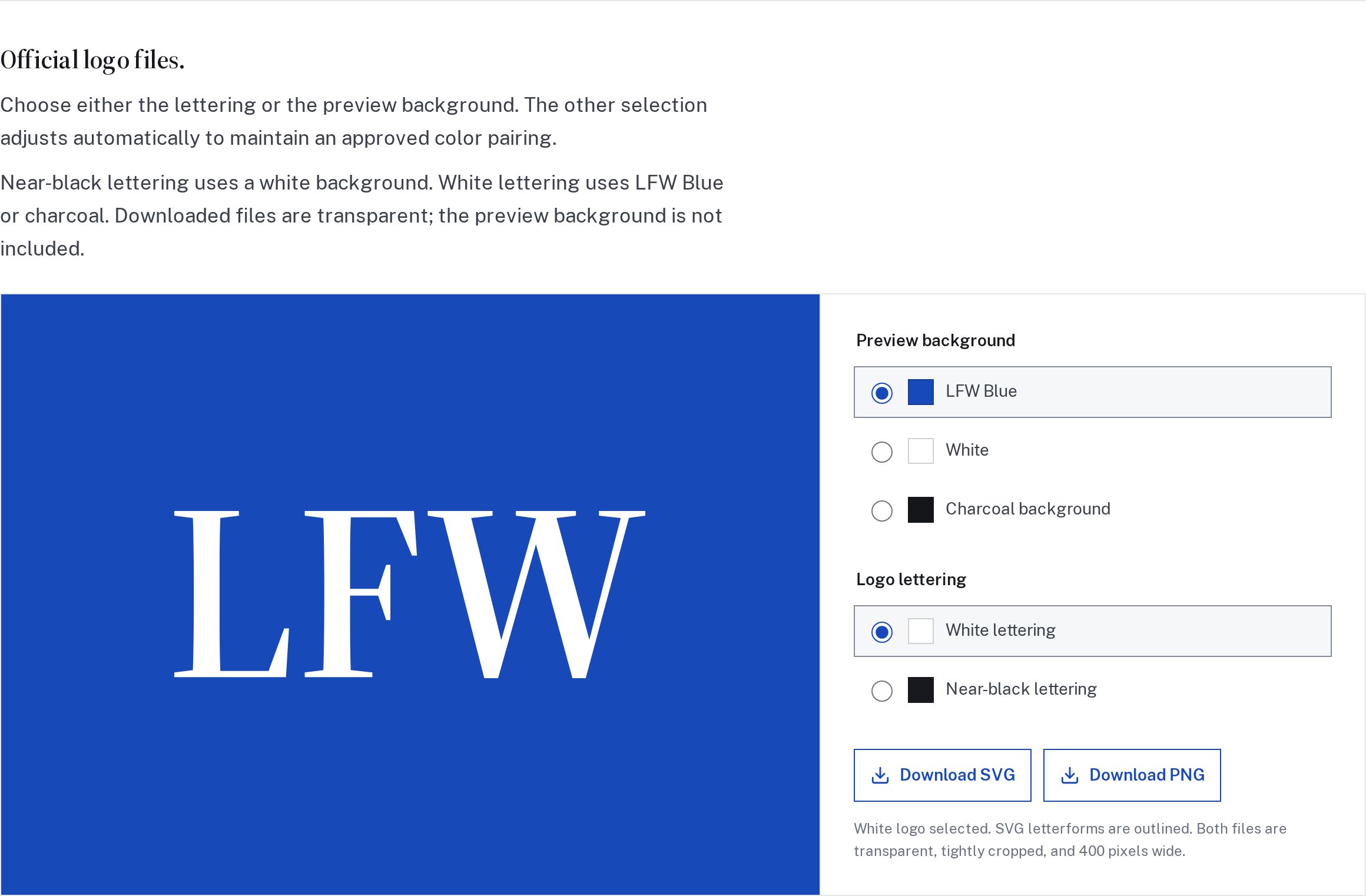
The brand page now includes an interactive logo download tool. Choose white or near-black lettering and preview it on an approved background. The paired choice adjusts automatically; downloaded SVG and PNG files stay transparent and tightly cropped.
We also clarified the supporting palette, including separate positive and error colors and how to pair them with readable labels.
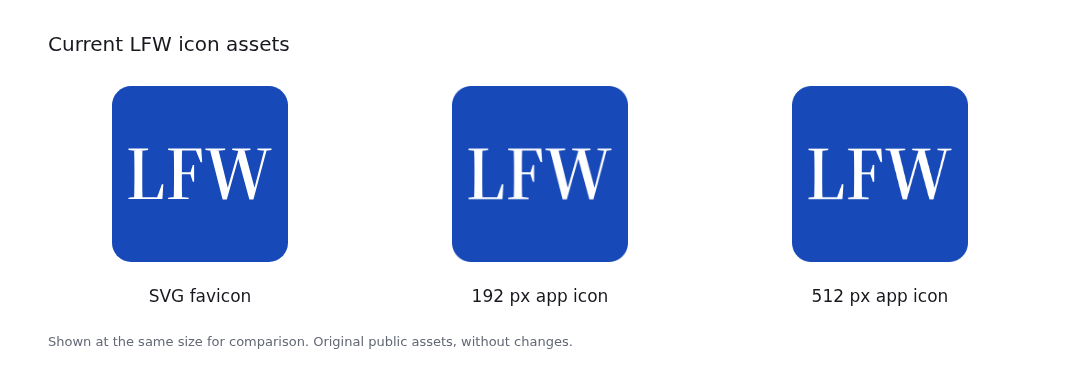
LFW’s browser and home-screen icons now use the same white lettering on LFW Blue. The small details follow the wordmark’s proportions and spacing, so the site stays recognizable in a tab or among your shortcuts.
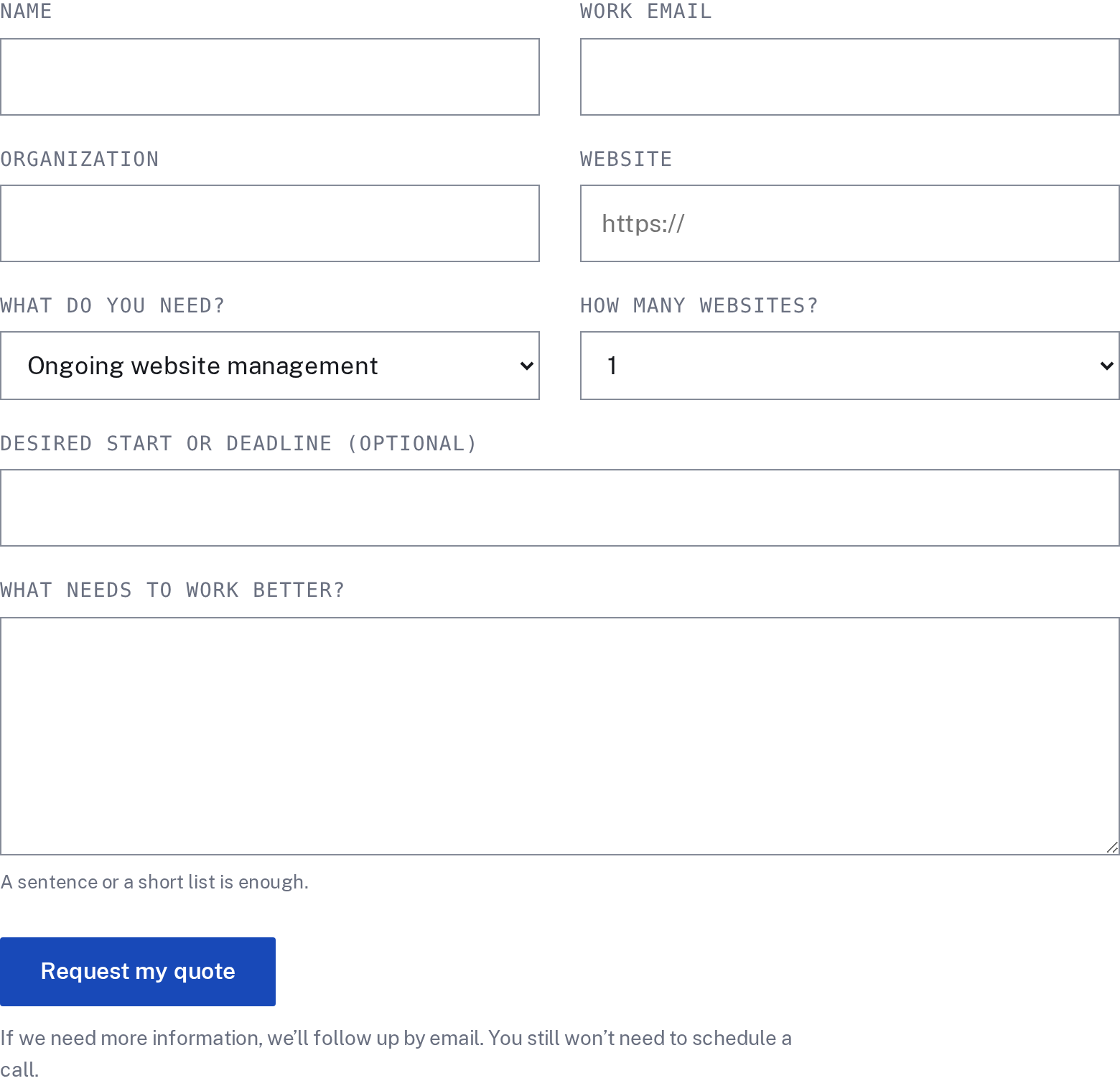
Service pages now lead to a dedicated quote request. Tell us about the website, the work, and your timing, with the service you came from carried into the form. We can follow up with questions before preparing a written scope and price.
A call is available if you have questions or prefer to talk. You do not have to book one to request a quote.
Turn visitor activity into an improvement to test.
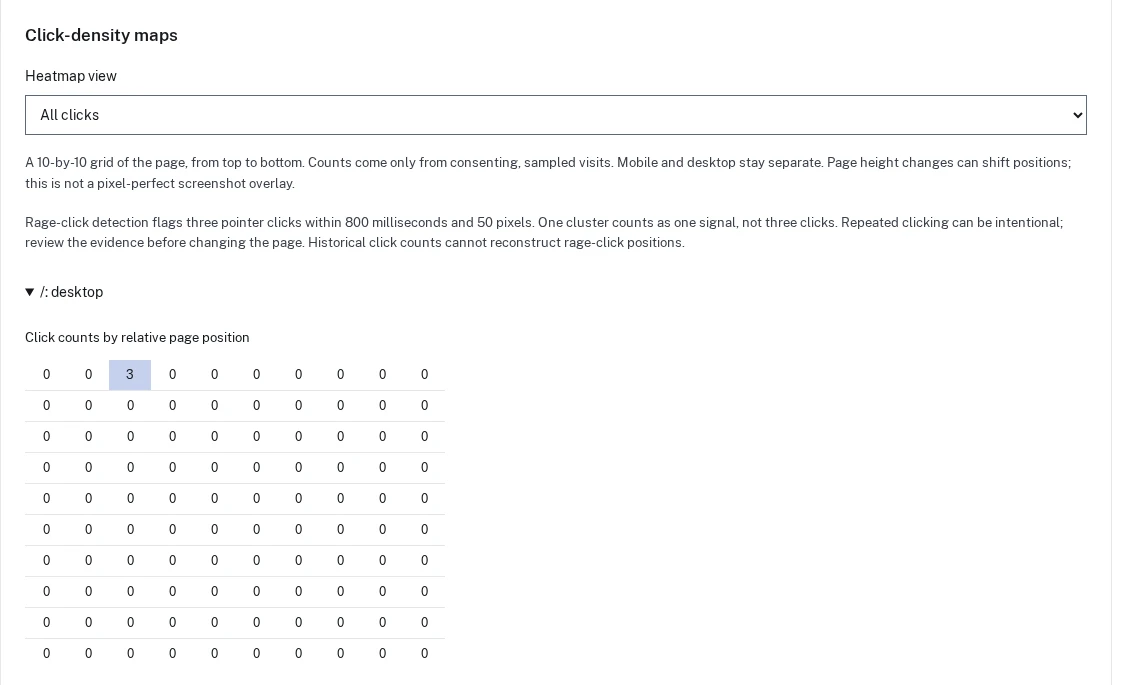
Analytics can compare selected calls to action with completed goals and show click-density and repeated-click maps from consenting sampled visits. A finding can become an experiment draft with the observation, proposed change, and goal kept together.
Drafts wait for review before anything changes on the website. Repeated clicks are a signal to investigate, not proof of somebody’s intent.
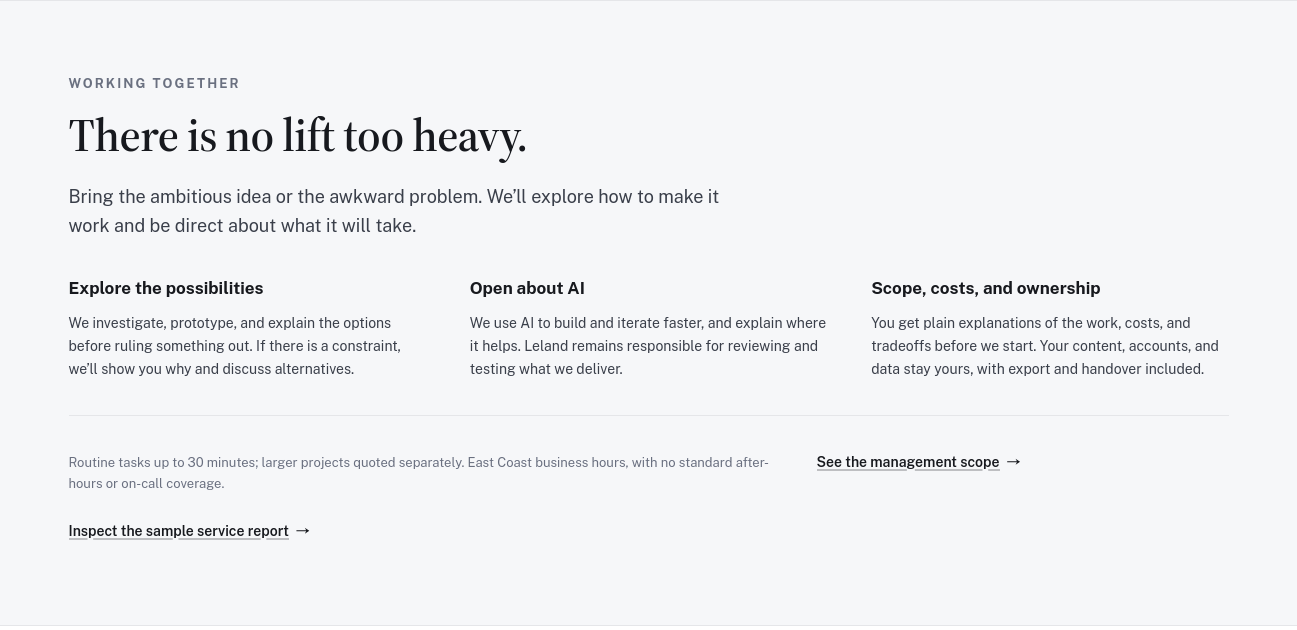
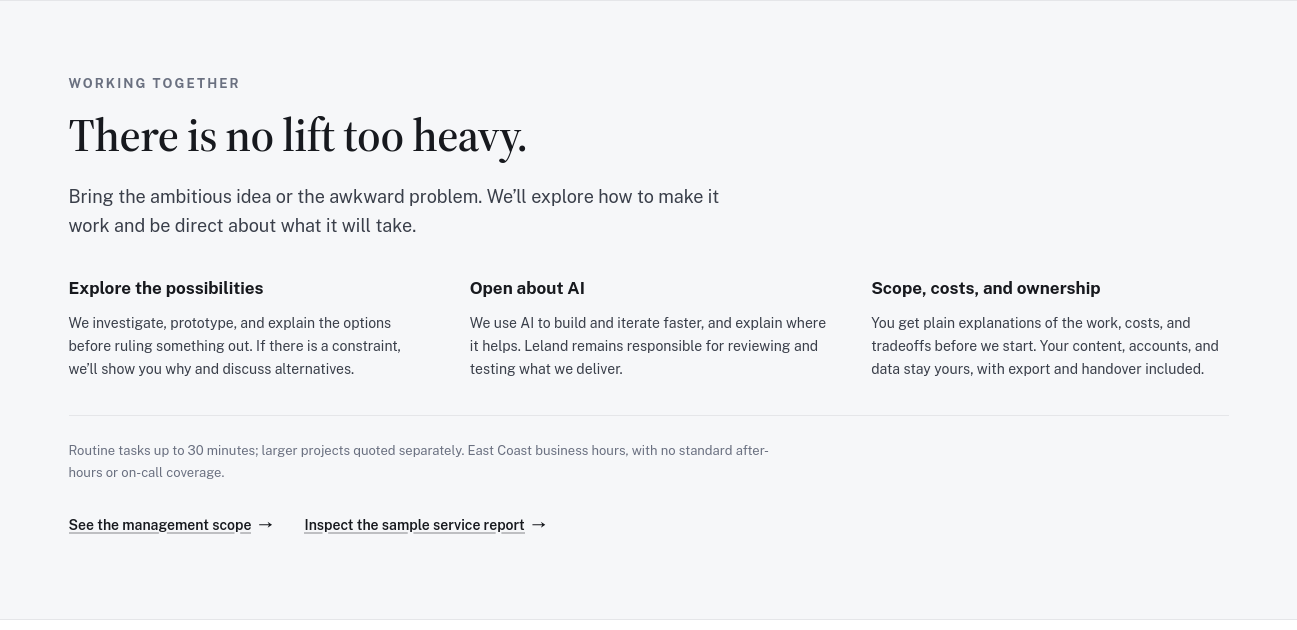
Related links on the About and service report pages now sit together in a clear action row. You can move from the explanation to the scope or sample report without hunting for a stray link.
The About page’s next steps before and after they were grouped together. Matched previews reconstructed from the original source.
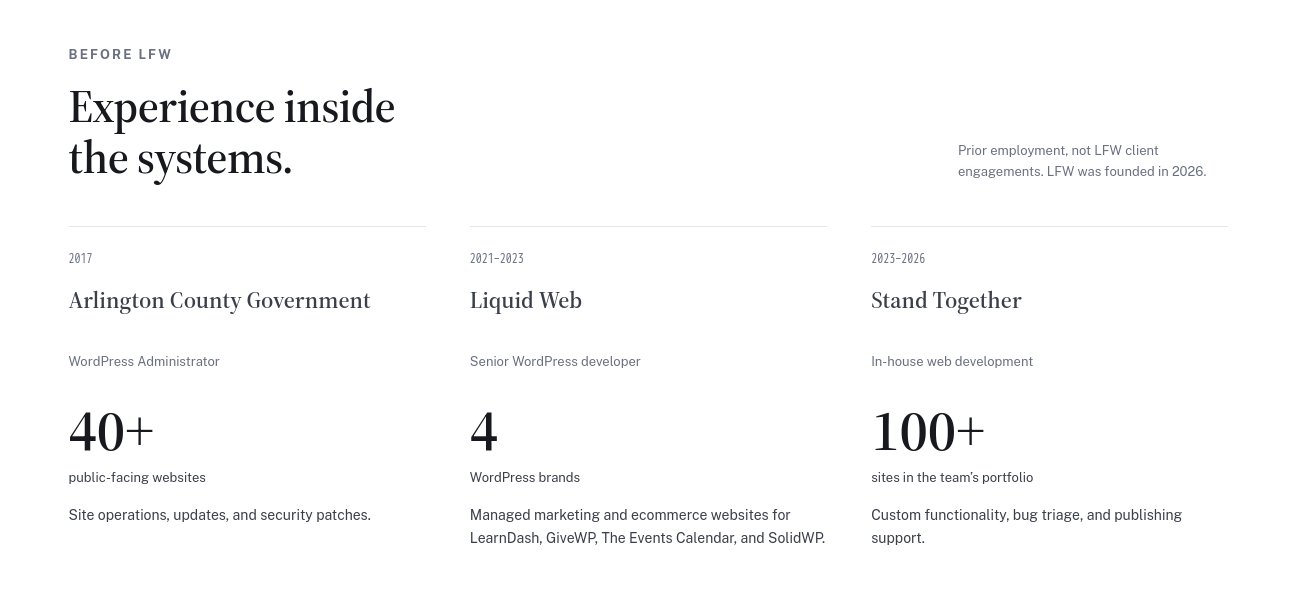
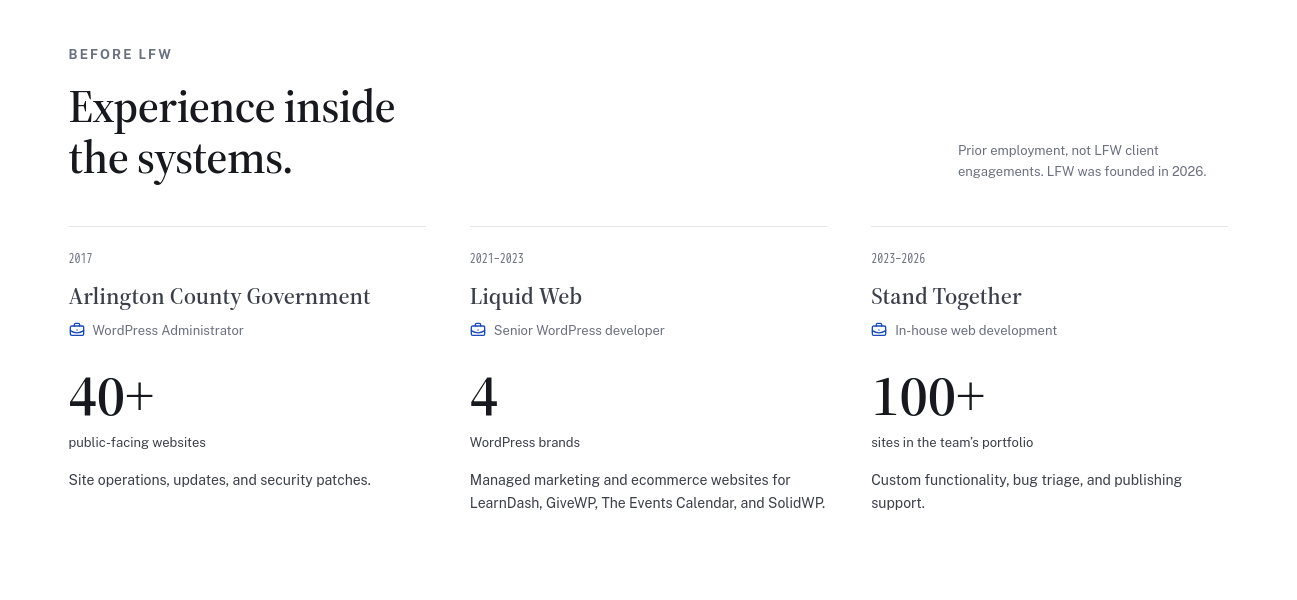
Leland’s prior roles now have a more deliberate hierarchy: dates, organizations, job titles, and the scale of the work. Small role icons and closer spacing make the relationship between those details easier to follow.
The section continues to distinguish prior employment from LFW client engagements.
The prior-experience cards before and after tighter spacing and role icons. Matched previews reconstructed from the original source.
Selected public improvements to LFW.com. Client work and confidential operational details
stay private. Earlier entries were collected from the project’s history and dated to the
relevant milestones. Screenshots labeled “current” show the version captured for this
changelog, not necessarily the version on the entry’s date.
What could we improve on your site?
Bring the website you have and the things you’d like to change. We’ll talk through the
priorities and prepare a quote for your organization.