LFW Platform · Field and facility reservations
Every field, room and pavilion on one calendar.
Residents book and pay online, staff approve what needs approval, and nothing is double-booked.
Used by Parks and recreation departments, recreation centers, libraries and community centers.
How it works.
From a resident’s booking to the day of the rental.
- 1 Your staff
List your spaces
Fields, rooms and shelters, each with its hours, its price, whether it needs approval and its rental agreement.
- 2 Residents
Book online
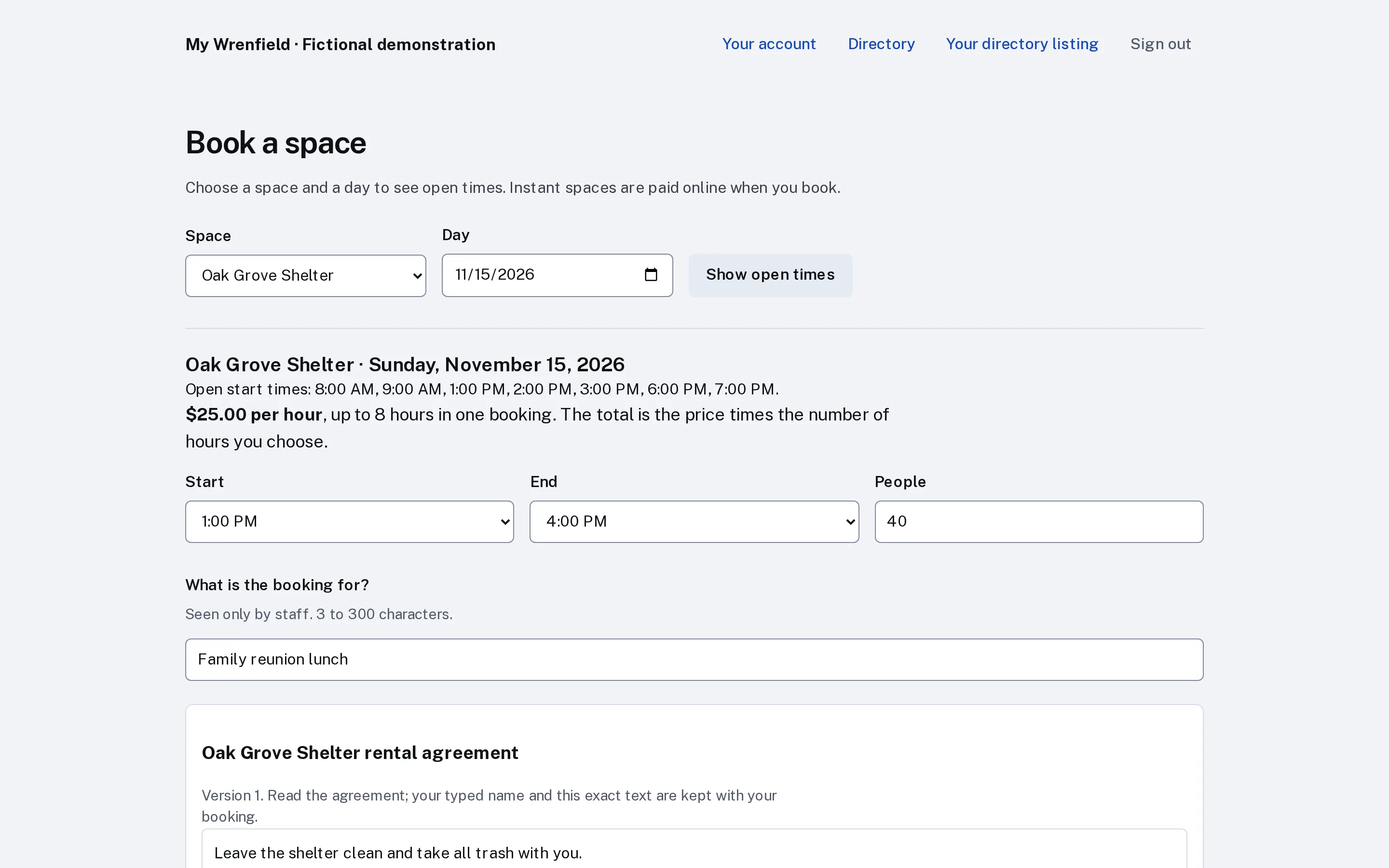
A resident signs in, picks a space and a day, sees the open times and the price, and agrees to the rental agreement with a typed name.
No phone calls to find an open date.
- 3 Residents
Pay through your account
Spaces that need no approval are held for 15 minutes and paid by card to your institution’s own Stripe account, at the resident rate for verified residents, with any security deposit. A booking is confirmed only after the payment is verified.
- 4 Your staff
Approve, cancel and refund
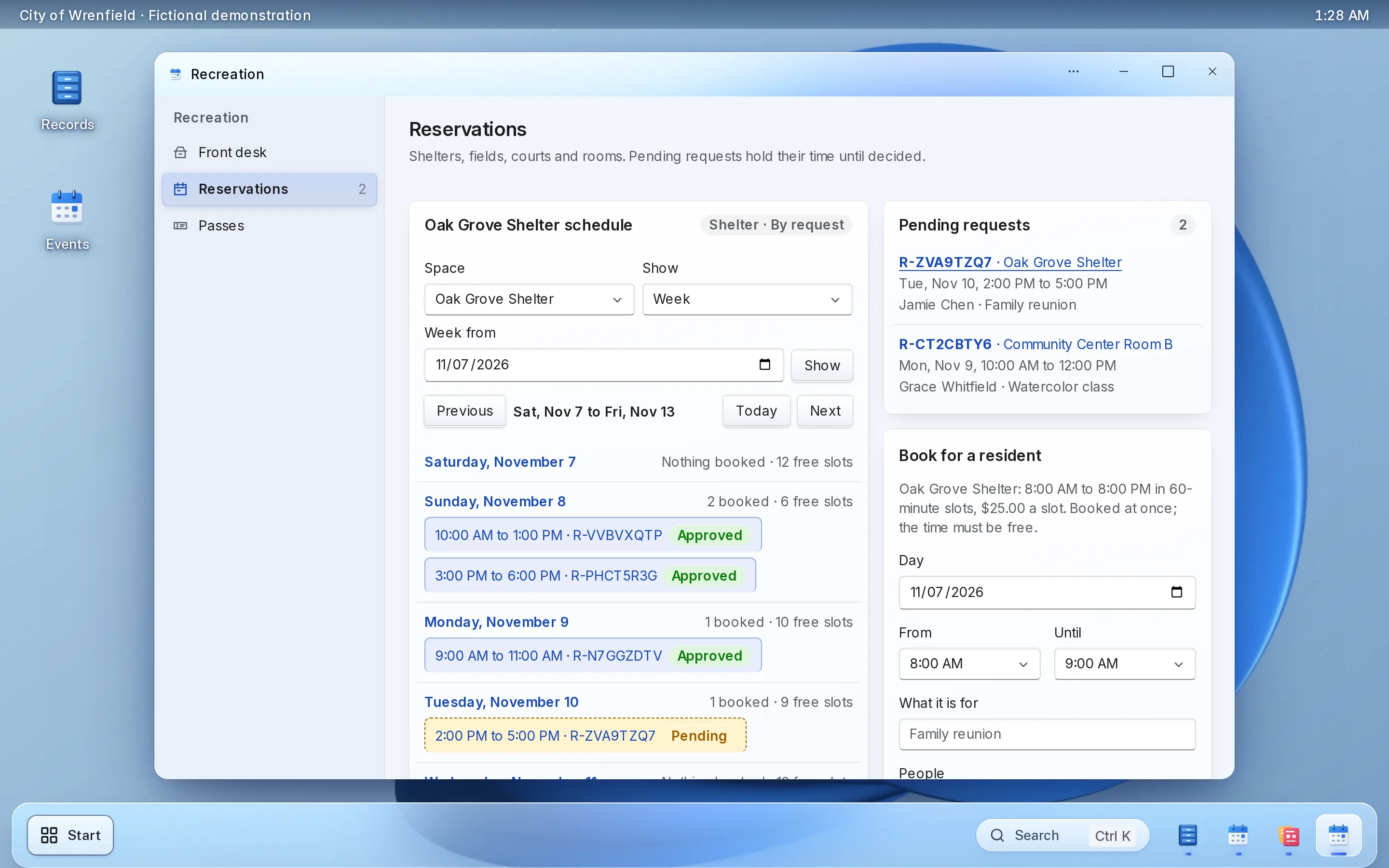
Requests that need a decision wait for staff, and the resident pays once approved. Cancellations follow each space’s policy; staff refund in full or in part, and return the deposit after the booking.
- 5 Your front desk
Book at the desk and check people in
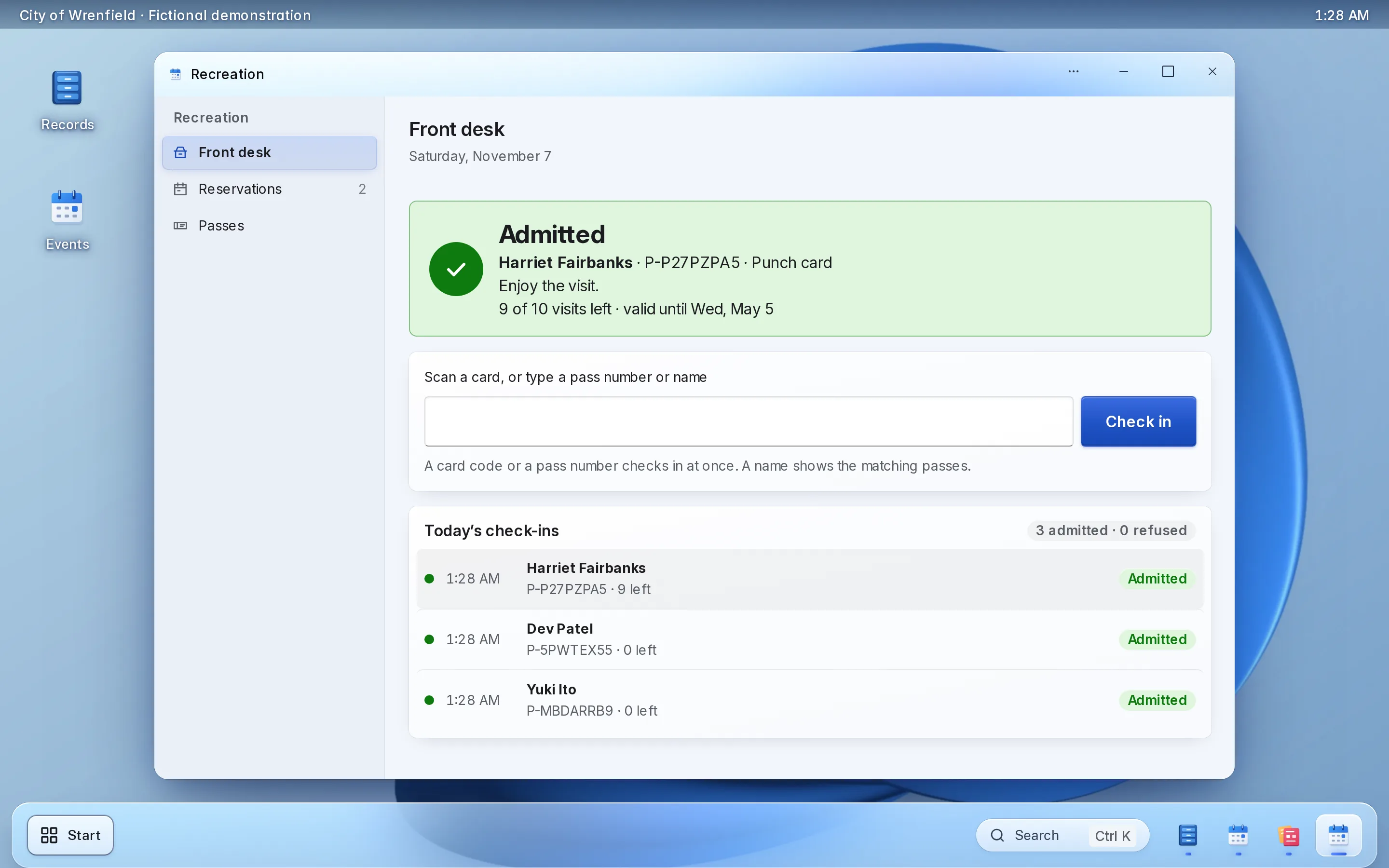
Book a space for a resident at the resident or non-resident rate, sell day, punch and season passes and check people in, with a clear reason when entry is refused.
What it looks like

Enlarge to view the full screenshot.
Enlarge to view the full screenshot.
Enlarge to view the full screenshot.
What your staff control.
What stays in your staff’s hands.
-
Availability
Hours and prices for each space, and a day and week view of every booking.
-
Approvals
Choose which spaces need approval. Every decline gives a reason.
-
Rental agreements
Each space has its own agreement, kept with the booking with the exact text and the typed name.
-
Rates, deposits and cancellations
Resident and non-resident rates, a refundable security deposit and a cancellation policy for each space.
Setting it up.
Your list of spaces is most of the setup.
What you bring
- Your spaces, their hours and prices
- Your rental agreement text
- Which spaces need approval
- A Stripe account in your institution’s name
What we do
- Set up your workspace and import your spaces
- Turn on online booking and connect payments
- Add booking to your website with one script tag
- Train the front desk
Questions.
Can residents book a pavilion online?
Yes. They pick a space and a time, agree to the rental agreement and pay by card to your Stripe account. Spaces you mark for approval wait for staff first.
Can two people book the same field at once?
No. The first booking holds the time, and every other request for it is refused.
Can we refund a cancelled booking?
Yes. Each space has its own cancellation policy, and staff refund in full or in part with a reason. Security deposits come back after the booking.
Can residents pay less than non-residents?
Yes, online and at the front desk. Staff verify who is a resident, and verified residents get the resident rate; staff never type a price.
Where does the money go?
Into your institution’s own Stripe account, in your name. Stripe’s own processing fees apply.
Do we have to replace our website?
No. The public uses it from the website you have, through a link to a hosted page or an embed. WordPress and Drupal sites can also install a connector.
Who sets it up?
LFW sets up your workspace and configures the workflow with your staff. Staff build their own forms and import existing records from a spreadsheet.
How do we get a price?
Send a written setup request or ask for a written quote. We reply within one business day. A call is optional.
Planning it first? Read the guide to taking reservations online
Start with your busiest space.
Send a written setup request. A demonstration is there if you want one.
Need a quote for purchasing? Request a written quote.